
— Free WordPress plugin · version 1.3.6
CodeBold Redirects user guide.
Send old addresses to new ones, catch pages that moved before anyone notices, and fix every "page not found" with one click. This guide walks through every screen.
01 Install and open it
- In your WordPress dashboard, go to Plugins → Add New.
- Search for CodeBold Redirects, then click Install Now and Activate.
- Open CodeBold Redirects from the main admin menu.
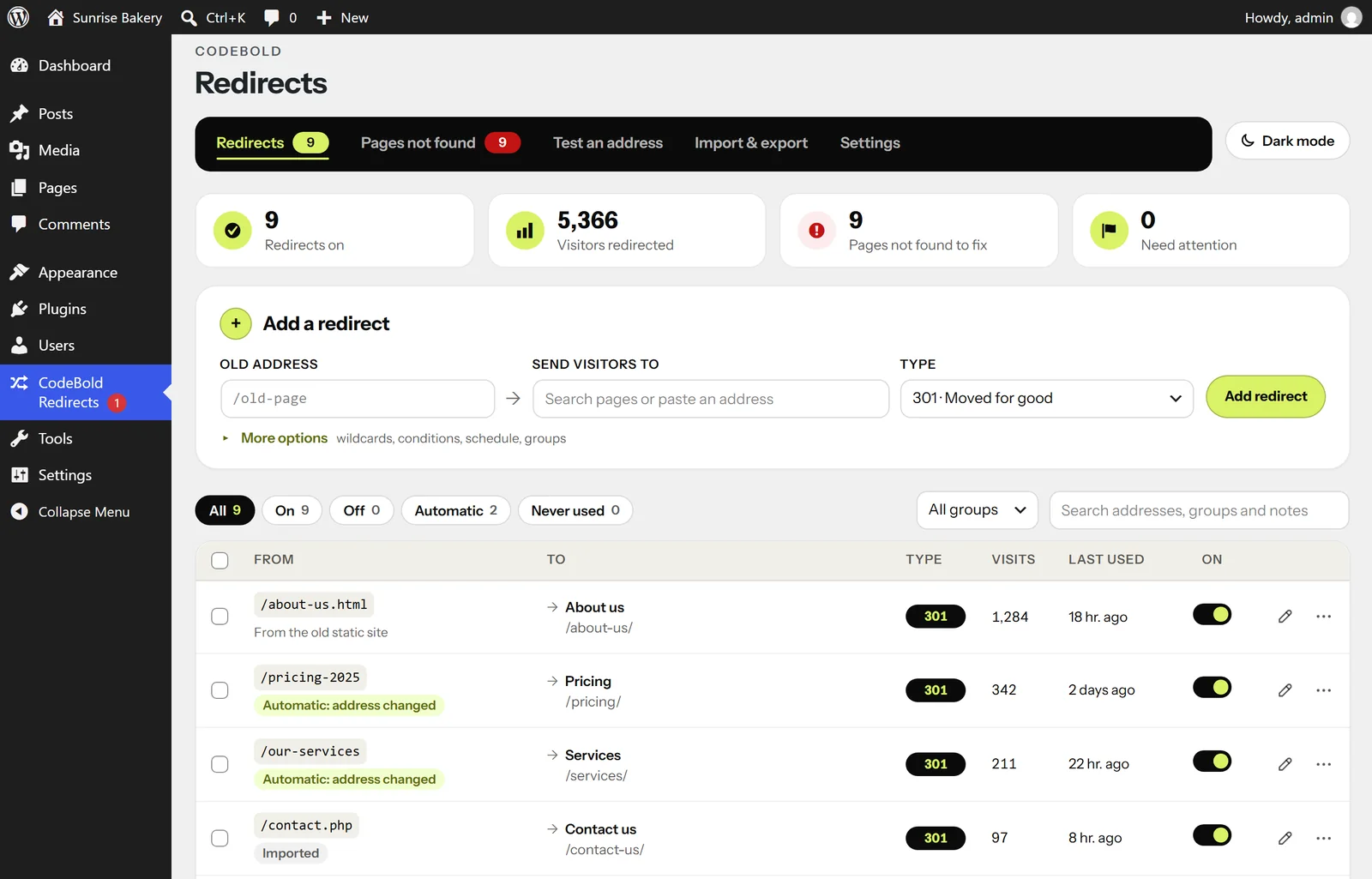
Tip: a red number on the menu item means new pages were not found since you last looked.
02 Add a redirect
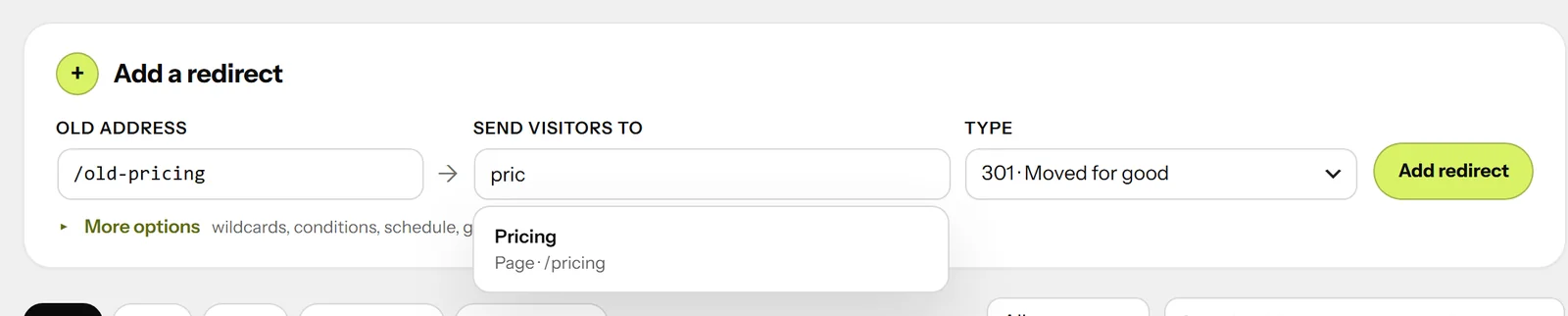
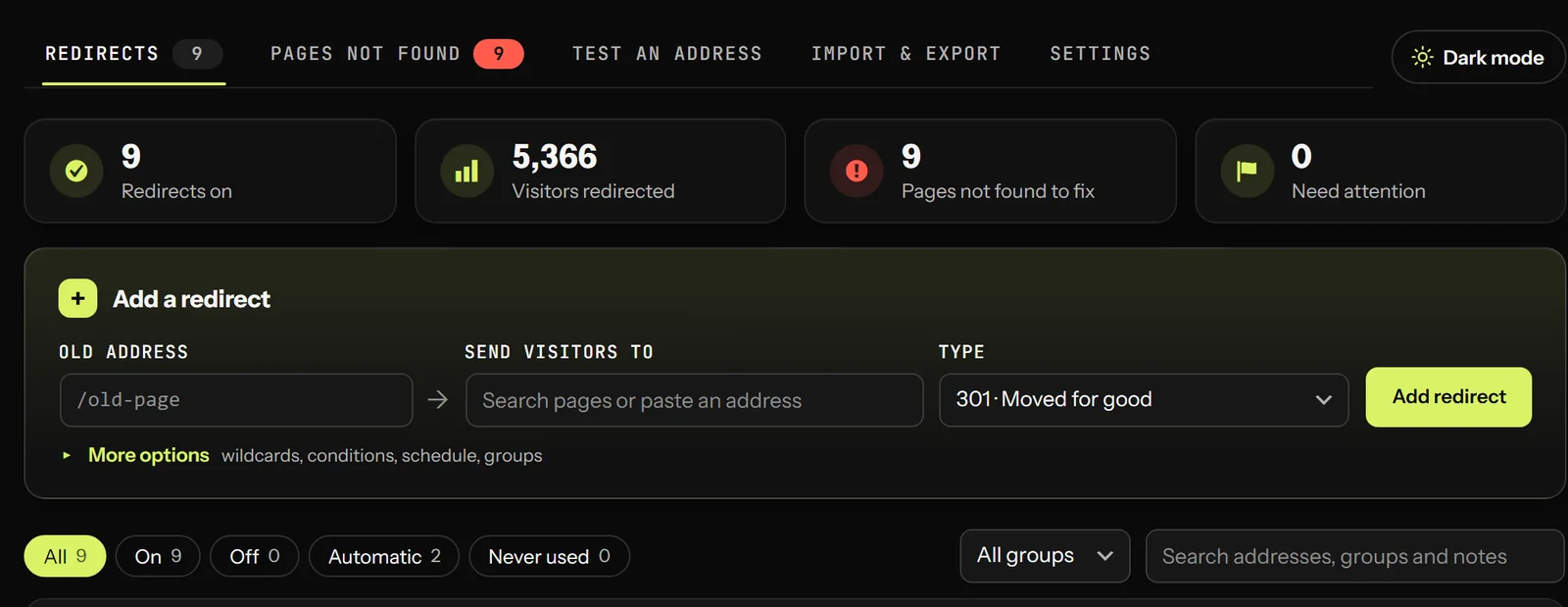
- Old address — the address that should stop being a dead end, e.g.
/old-pricing. You can paste a full link; the plugin keeps only the part after your domain. - Send visitors to — start typing a page's name and pick it from the list, or paste any address, even on another site. Picking a page links the redirect to the page itself, so it keeps working if the page moves later.
- Type — leave it on 301 · Moved for good unless you have a reason not to (see below).
- Click Add redirect. It works immediately.
| Type | Means | Use it when |
|---|---|---|
| 301 | Moved for good | The page has a new home for ever. The usual choice — search engines pass the old page's ranking to the new one. |
| 302 / 307 | Moved for now | A sale, a seasonal page, maintenance. Search engines keep the old address. |
| 308 | Moved for good (strict) | Like 301, but forms keep their data on the way. Rarely needed. |
| 410 | Gone | Removed on purpose — tells search engines to forget the page sooner than a 404 would. |
| 451 | Legal block | Removed for legal reasons. |
You don't need to worry about: trailing slashes, capital letters or ?utm_ tags — /About/, /about and /about?utm_source=x all match the same redirect.
03 More options
Click More options under the form. Three sections open, each remembering whether you left it open, and each saying in one line what is set inside when it's closed.
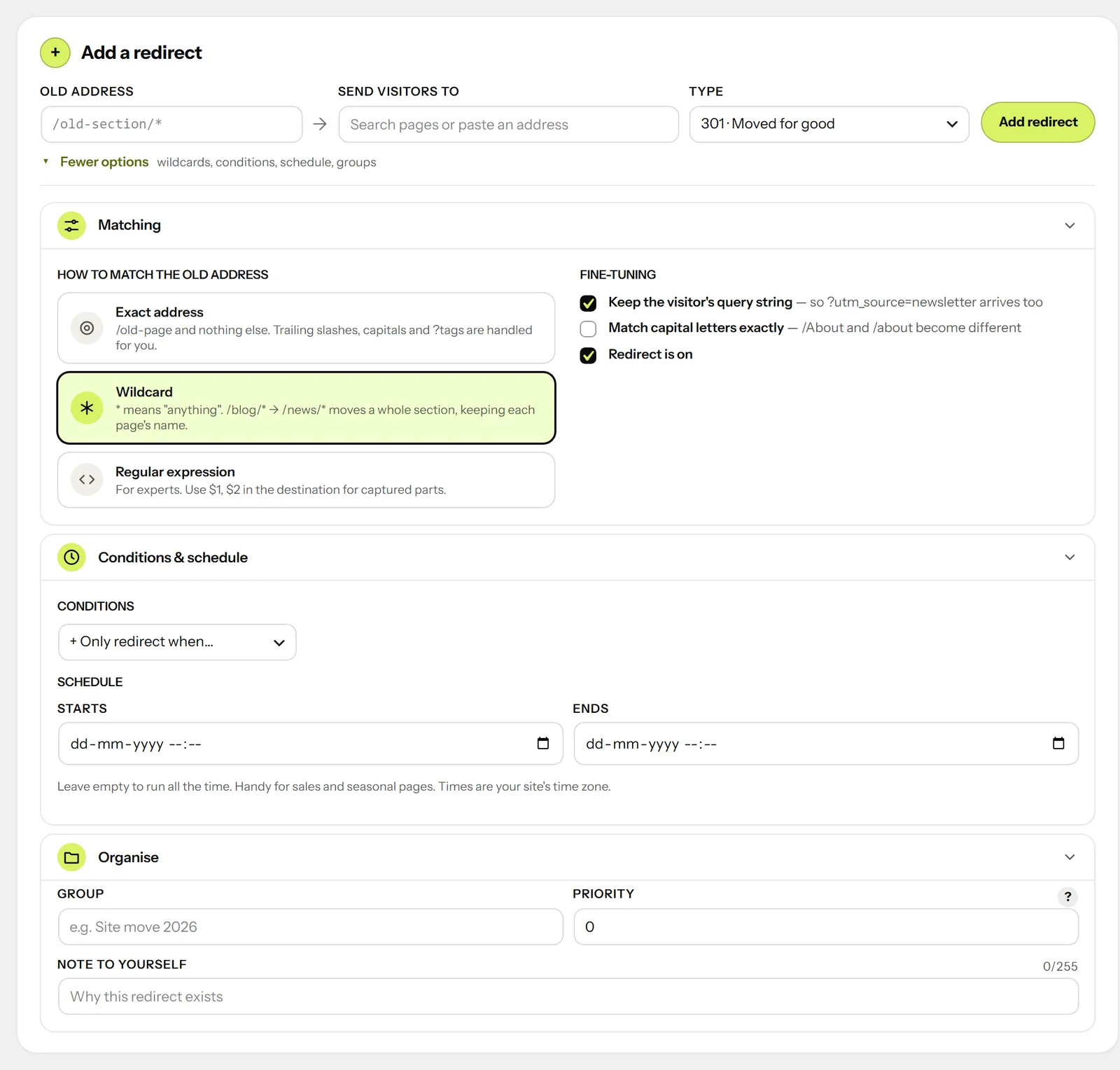
- Matching — Exact address for one page; Wildcard to move a whole section:
/blog/*→/news/*keeps each page's name; Regular expression for experts ($1,$2carry captured parts across). You can also keep the visitor's query string or make capital letters matter. - Conditions & schedule — only redirect when something is true: logged in or out, a user role, the device, the browser, the language, where the visitor came from, a cookie, an IP address, the country, or only if the page is genuinely not found. Add a start and end date for sales and seasonal pages.
- Organise — put redirects in a group (e.g. "Site move 2026"), set a priority when two patterns could match the same address, and leave yourself a note.
04 Manage your redirects
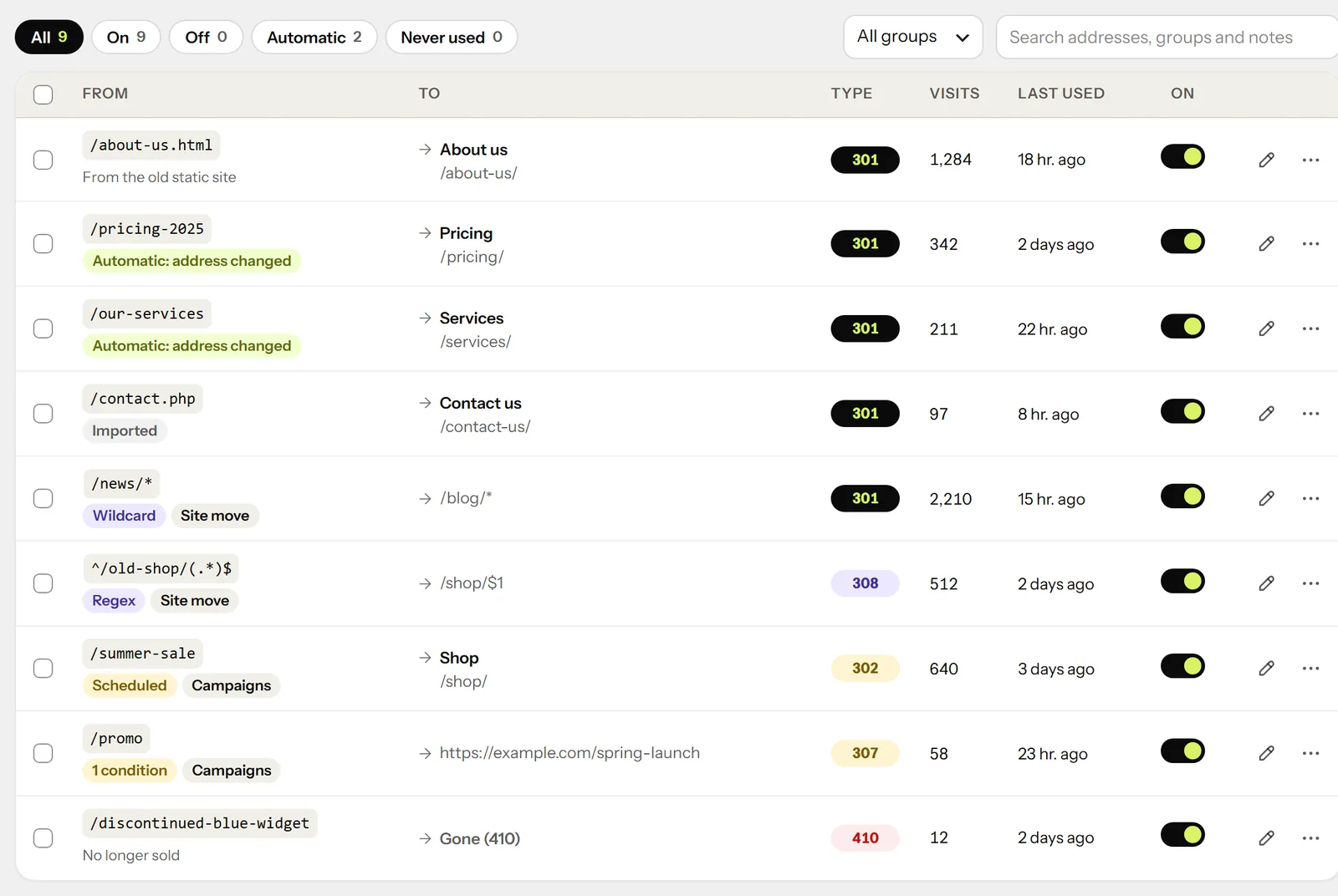
- The four figures at the top are shortcuts: click Need attention to see redirects pointing at pages that are no longer published.
- Filters and search — All, On, Off, Automatic, Never used, and by group. Search covers addresses, groups and notes.
- The switch turns a redirect off without deleting it.
- The pencil opens the redirect for editing, right in the list.
- The ⋯ menu — Test, Duplicate as new, Copy old address and Delete. Deleting shows an Undo button, so there's no "are you sure?" to click through.
- Many at once — tick the boxes on the left to turn several on or off, move them to a group, or delete them.
05 Fix pages not found
Every time a visitor asks for a page that doesn't exist, it's listed under Pages not found — most visited first, with where the visitor came from.
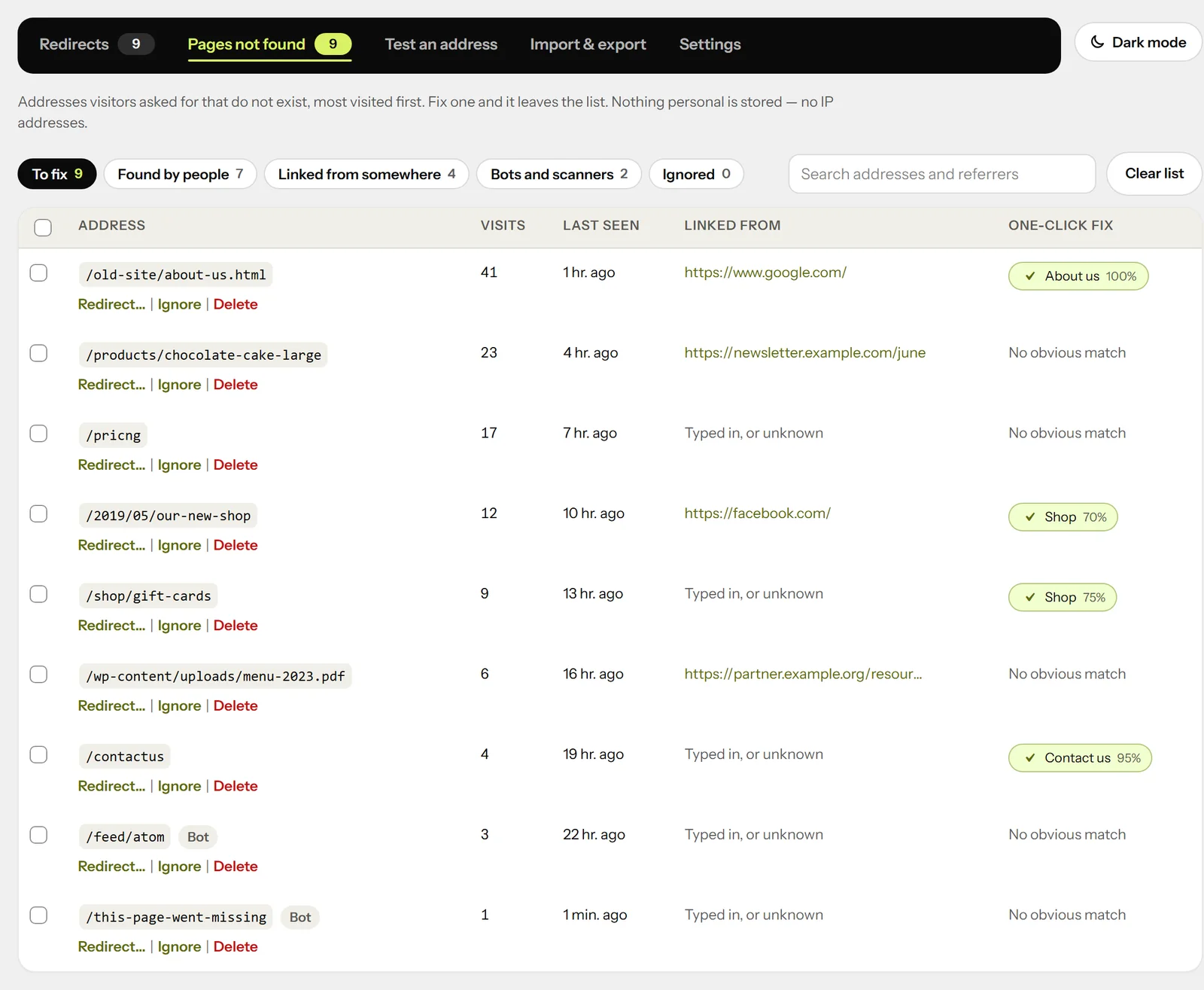
- One-click fix — click the green suggestion to redirect the address to that page. Fixed addresses leave the list.
- Redirect… — choose any page yourself. Ignore hides addresses you don't care about; Delete removes the record.
- Filters — Found by people, Linked from somewhere (fix these first: a real link points at them) and Bots and scanners.
Good habit: check this tab once a week. A broken link fixed today is a visitor — and a search ranking — kept.
06 Automatic redirects
You don't have to add most redirects yourself:
- Renamed or moved pages — change a page's or post's address, move it under another page, or change a post's date, and a redirect from the old address is made for you. Pages beneath a moved page are covered too.
- Categories and tags — renaming a category, tag or product category gets the same treatment.
- Moved to the bin — optionally send visitors to the parent page, or answer 410 Gone. Restoring the page removes it again.
Automatic redirects are marked Automatic: address changed in the list, and you can turn each kind on or off in Settings.
07 Test an address
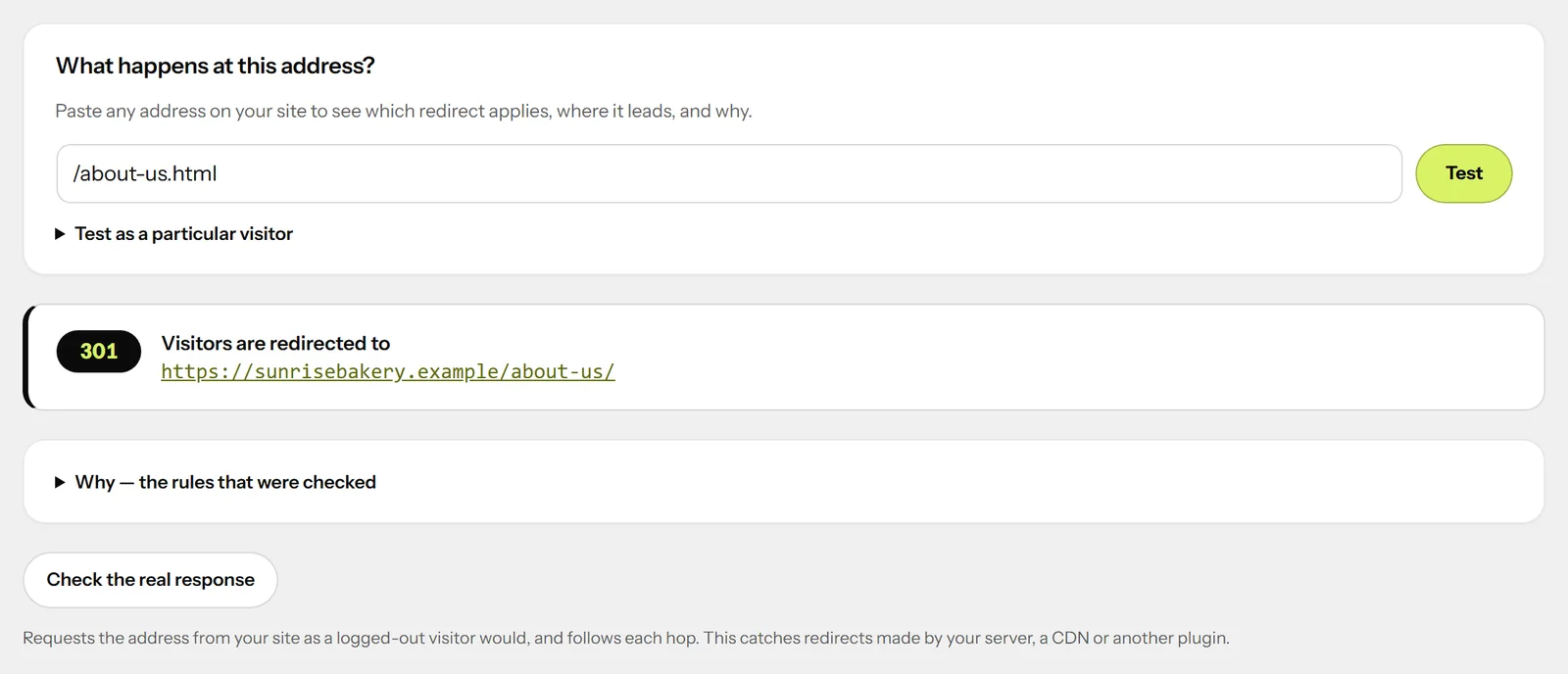
Not sure what happens at an address? Paste it under Test an address. You'll see which redirect applies, where it leads and why — and Check the real response asks your live site as a logged-out visitor would, which also catches redirects made by your server, a CDN or another plugin.
08 Import & export
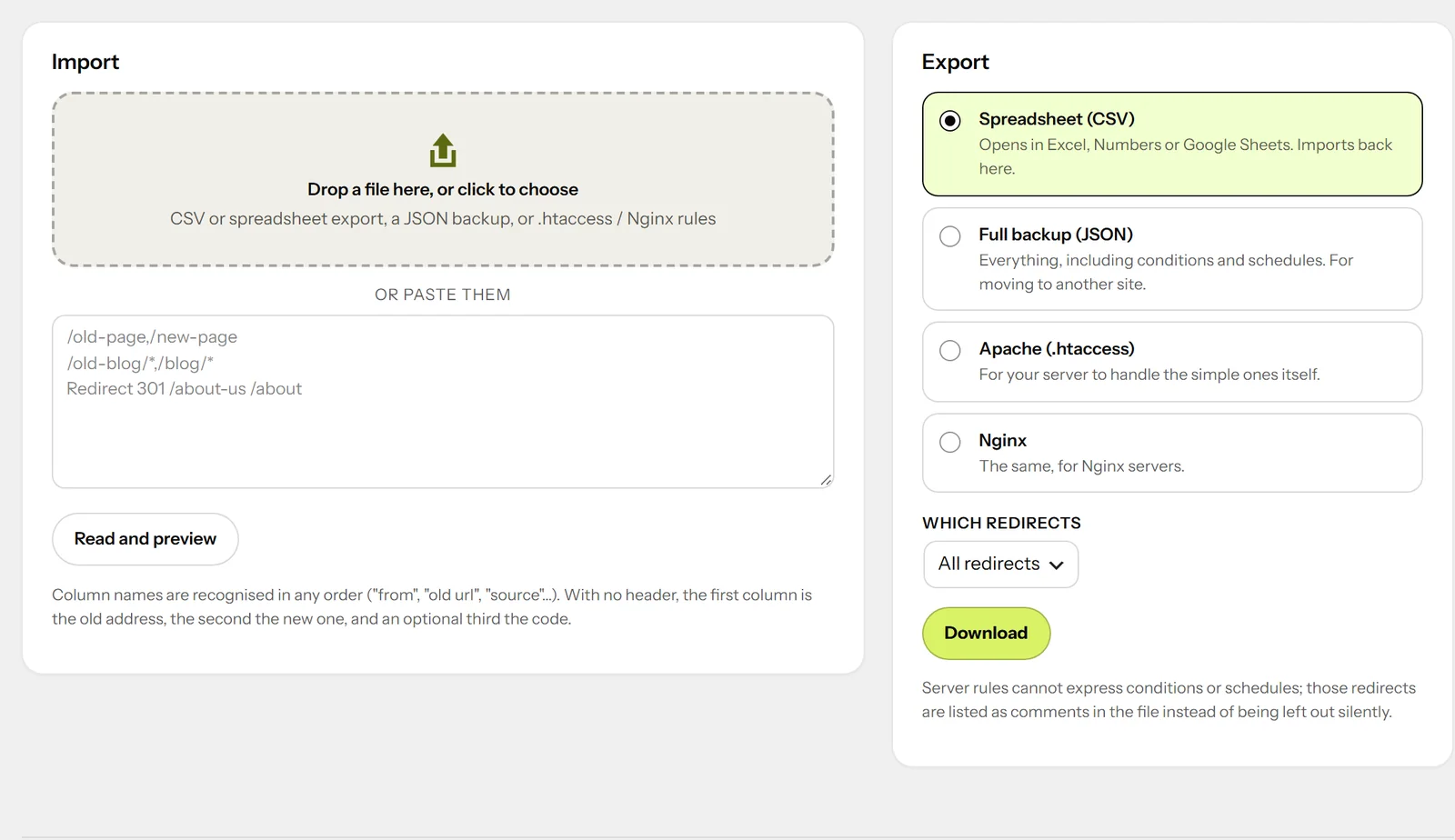
- Switching from another plugin? Redirects from Redirection, Rank Math, Yoast SEO Premium, Safe Redirect Manager and Simple 301 Redirects are found automatically — import them with one click.
- From a file — drop a spreadsheet (CSV), a JSON backup, or
.htaccess/ Nginx rules, or paste lines like/old-page, /new-page. Every line is checked in a preview before anything is saved. - Export — a spreadsheet, a full backup for moving to another site, or rules for Apache (
.htaccess) and Nginx.
09 Settings & Dark mode
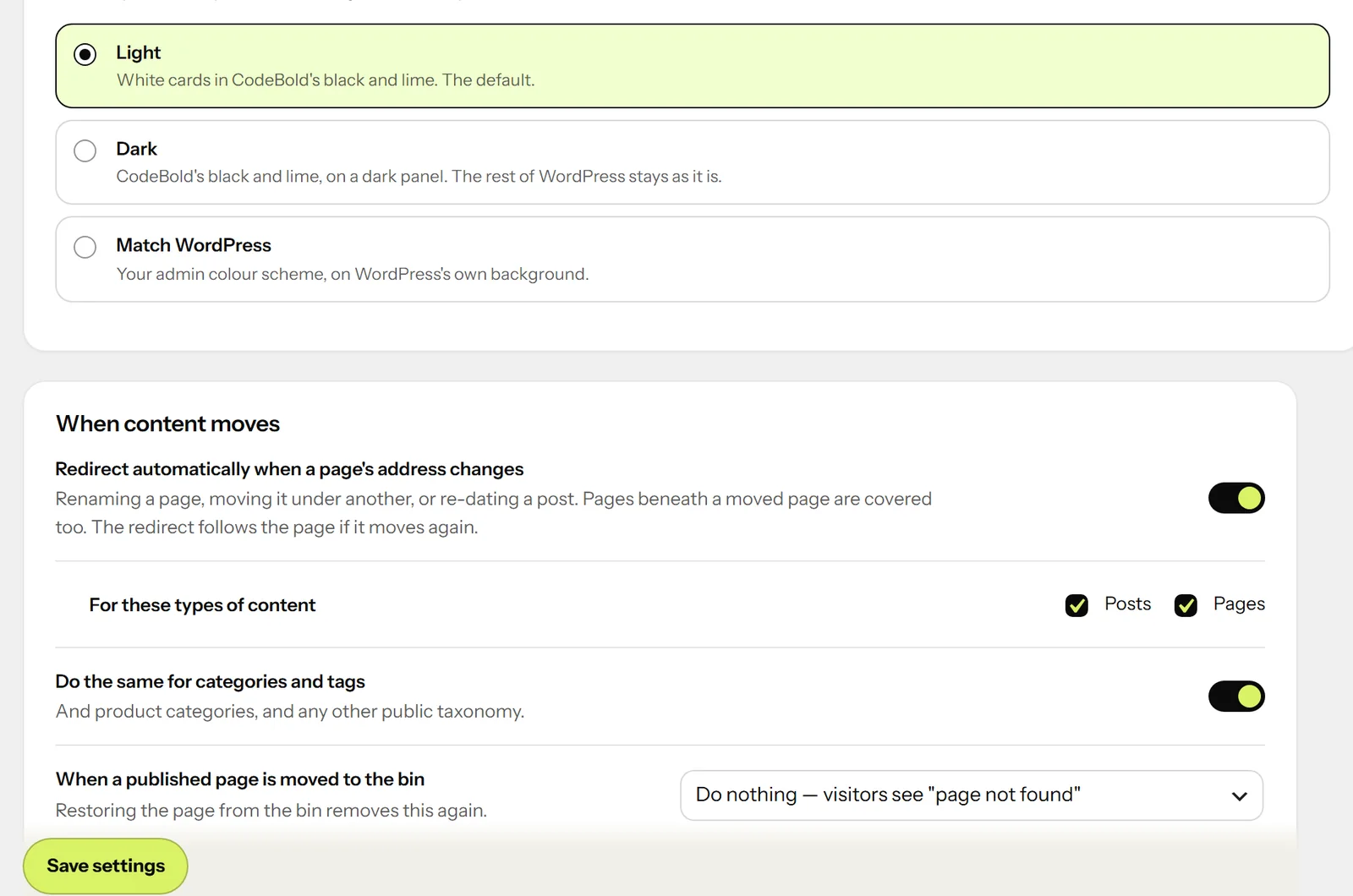
- Appearance — Light (the default), Dark, or Match WordPress to use your admin colour scheme. It's your own choice: everyone who manages redirects picks their own.
- Dark mode button — beside the tabs; one click for dark, another for light.
- Other settings — automatic redirects, the pages-not-found list (how long it's kept, ignoring images and bots), defaults for new redirects, letting editors manage redirects, and what happens to your data if the plugin is deleted.
10 Shortcuts around WordPress
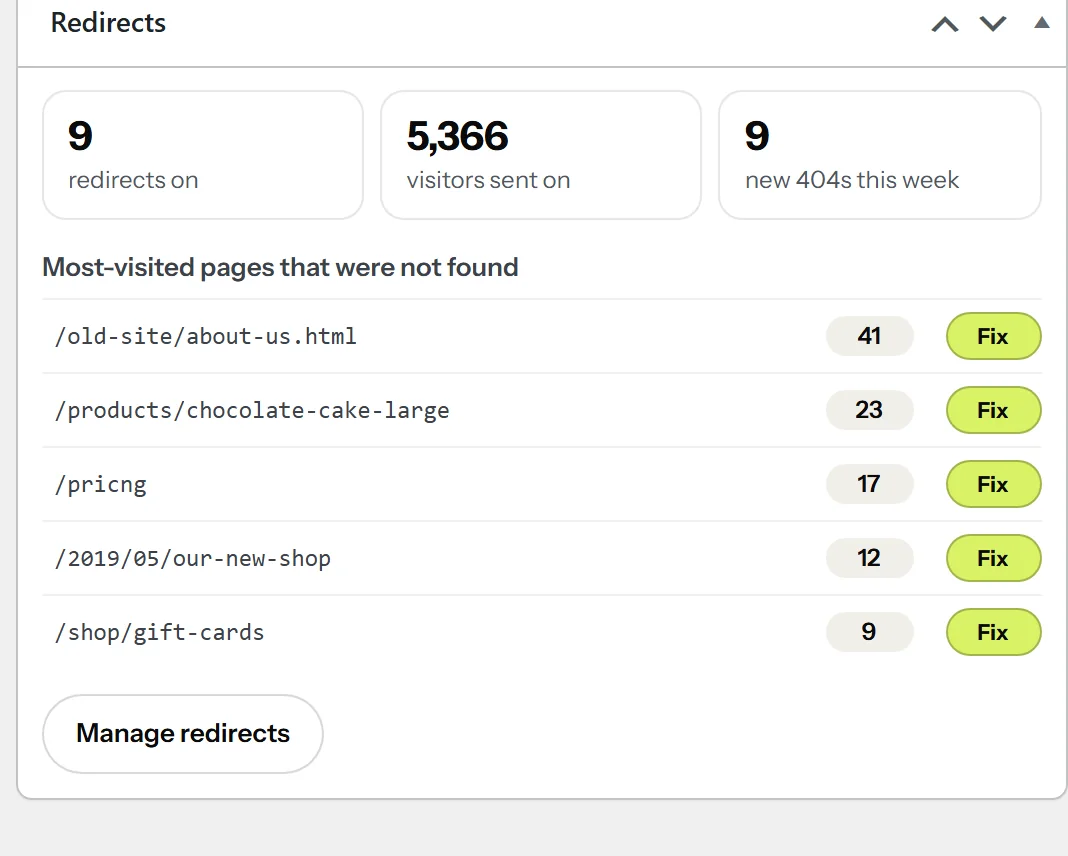

While editing a page or post, the Redirects box shows the old addresses that lead to it, and lets you send the page itself somewhere else.
11 Questions
Do I need to do anything when I rename a page?
No. Change the page's address in WordPress and the plugin adds a redirect from the old one on its own. It follows the page if you rename it again, so old links never go through a chain of redirects.
Why doesn't my redirect work when I'm logged in?
It does — unless the redirect has a condition such as "only for logged-out visitors", or your browser remembers an older redirect. Try it in a private window, or use Test an address to see exactly what happens.
Does it work with page caching?
Yes. Redirects are answered before a page is built. If a cache or CDN in front of your site remembered an old answer, clear that cache once after adding the redirect.
Should I send every missing page to the homepage?
Usually not. Search engines treat that as a "soft 404", and visitors land somewhere they did not ask for. Fix the addresses that matter from Pages not found instead.
Does it store my visitors' data?
No personal data. Pages not found keeps the address, a count, when it was seen, and where the visitor came from — never IP addresses.
What happens if I deactivate or delete the plugin?
Your redirects stop working while it is off, and are kept. Deleting the plugin keeps them too, unless you turned on "Delete all redirects when this plugin is deleted" in Settings.
